
Pi Network Node not running? Here is the solution. Firstly, you should have the correct configuration for Pi Node to run. If your configurations are right, then, you just have to check the status. When checking the status, there are 3 mains states which are :
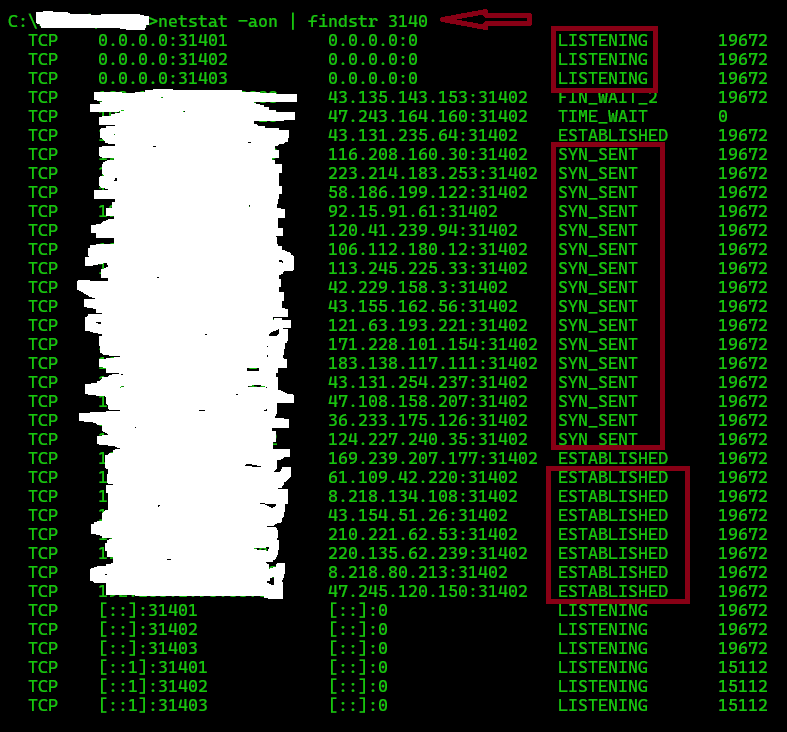
- SYN_SENT (SYNCED – That means your node is working properly and all the IPs you see in the result are now connected to your computer)
- ESTABLISHED (That means the IPs you see in the result are now connected to your computer, but NOT SYNCED)
- LISTENING (That means your PC ports are OPEN and that you can receive connections from Pi Network Nodes)
If your PiNet node is running properly, you should see something like this
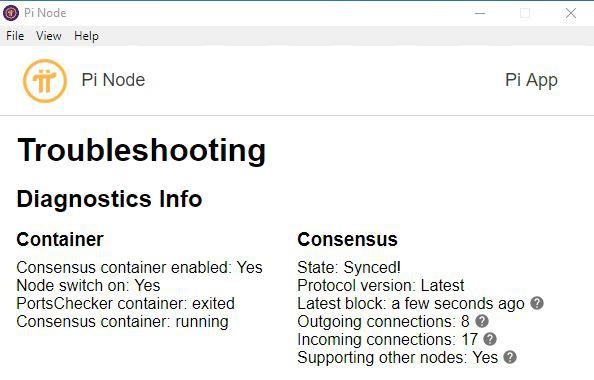
In some countries, after installing correctly Pi Node, as we suggested, you may realize that Pi Node is working, but you are not receiving any incoming connections. In this case, you should contact your internet service provider and tell them that you want a static IP. This service may not be free in some countries. If you need technical assistance, leave an email to info@kotigi.com.
Static IP Vs Dynamic IP: A static IP is a permanent IP address assigned to a device, meaning it never changes. This makes it ideal for tasks that require consistent access, such as hosting websites, running servers, setting up remote access, or using certain VPN services. In contrast, a regular IP—usually a dynamic IP—is assigned by your internet provider temporarily and can change over time. Most home networks use dynamic IPs by default, as they are easier to manage and more cost-effective for ISPs.
How to check the status of your Pi Node
Step 1: Open command prompt CMD
Step 2: Write this command 👇
👉netstat -aon | findstr 3140
Pi Network Node Configuration
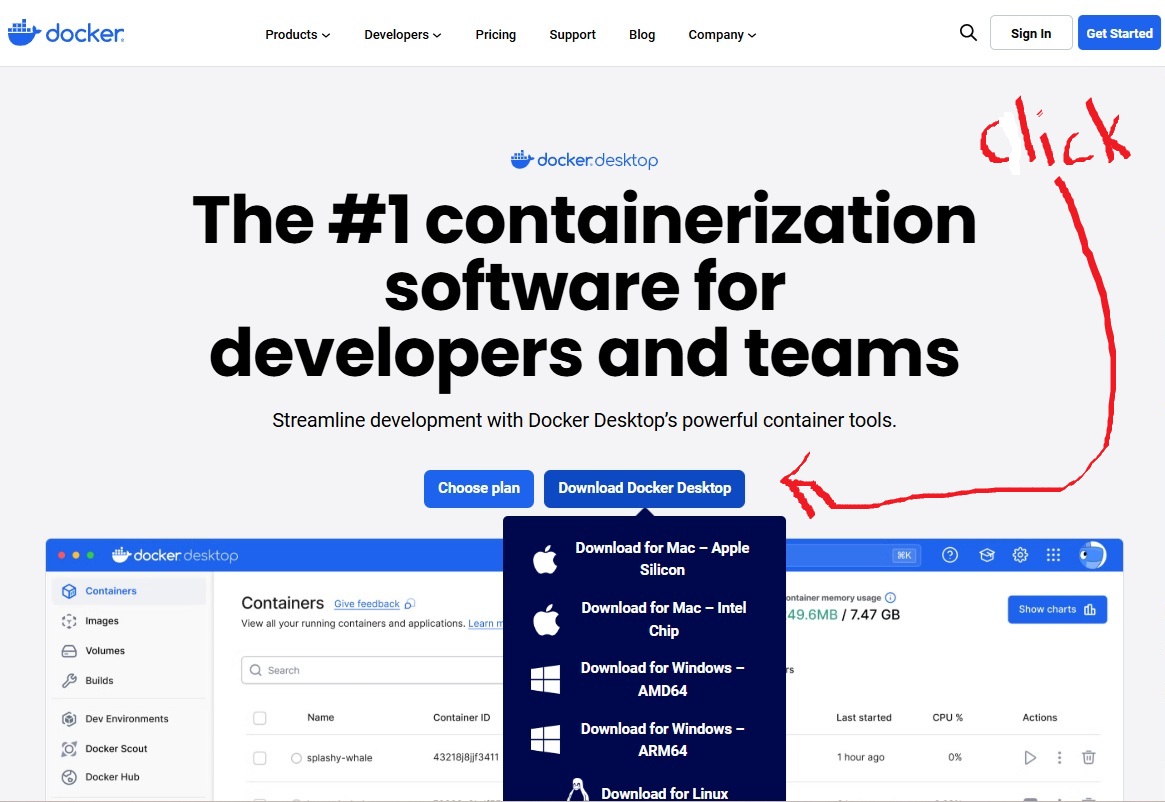
Step 1/4 :
Install Docker latest stable version from the official website, click here
Step 2/4 :
Install Latest version of Pi Node latest version from the official website, click here

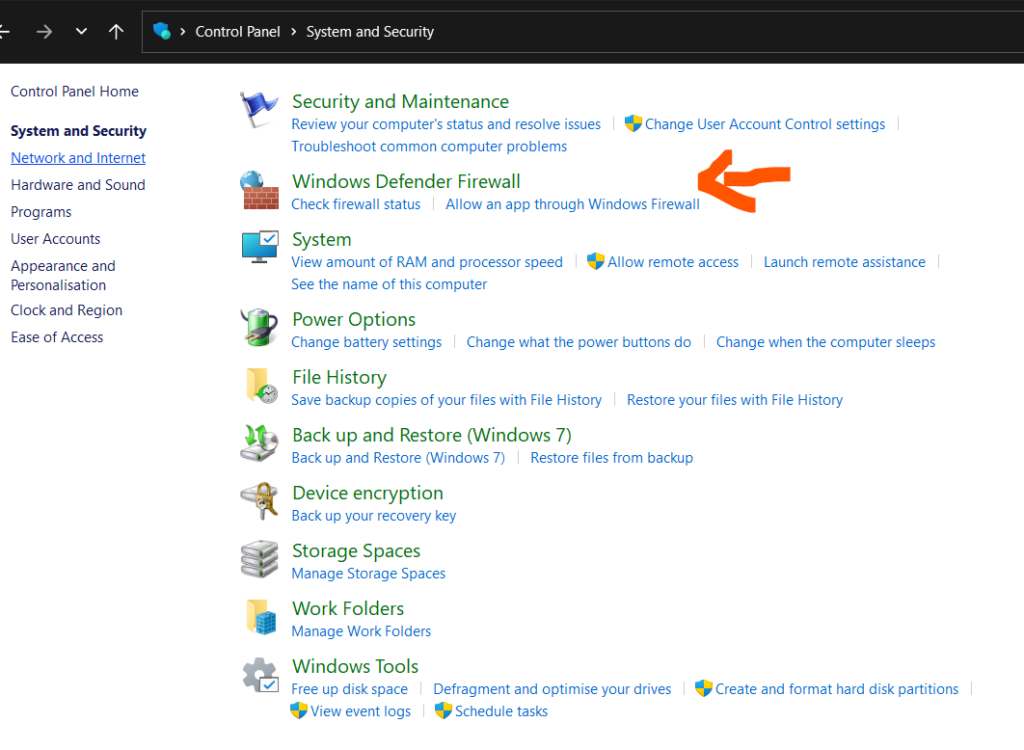
Step 3/4 :
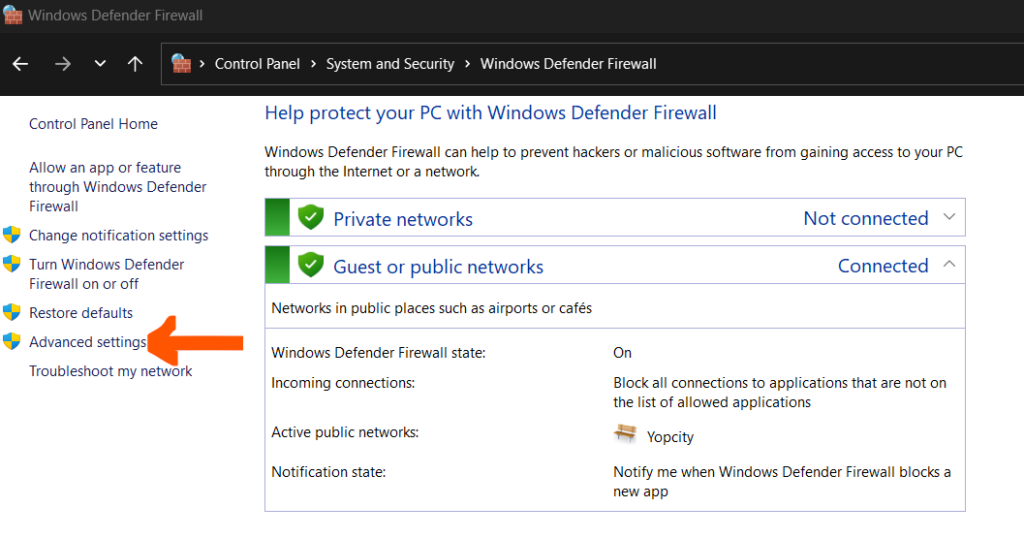
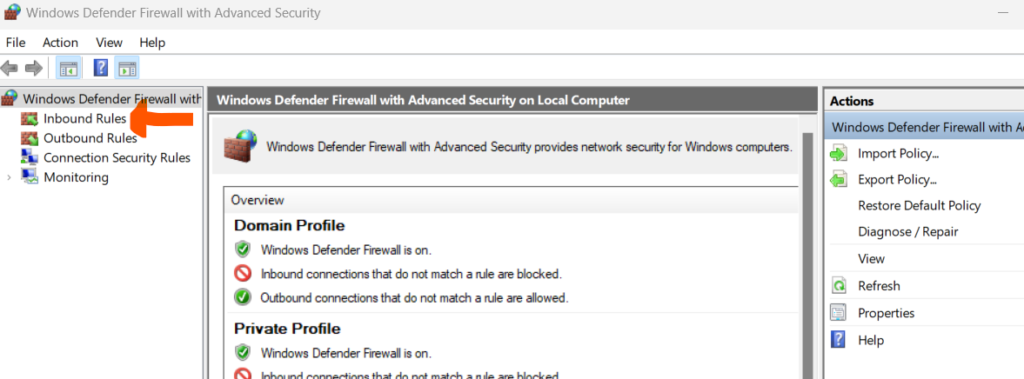
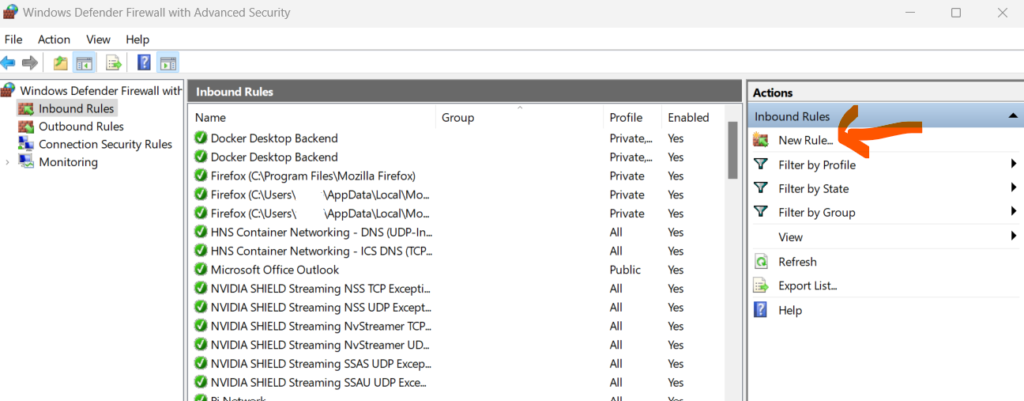
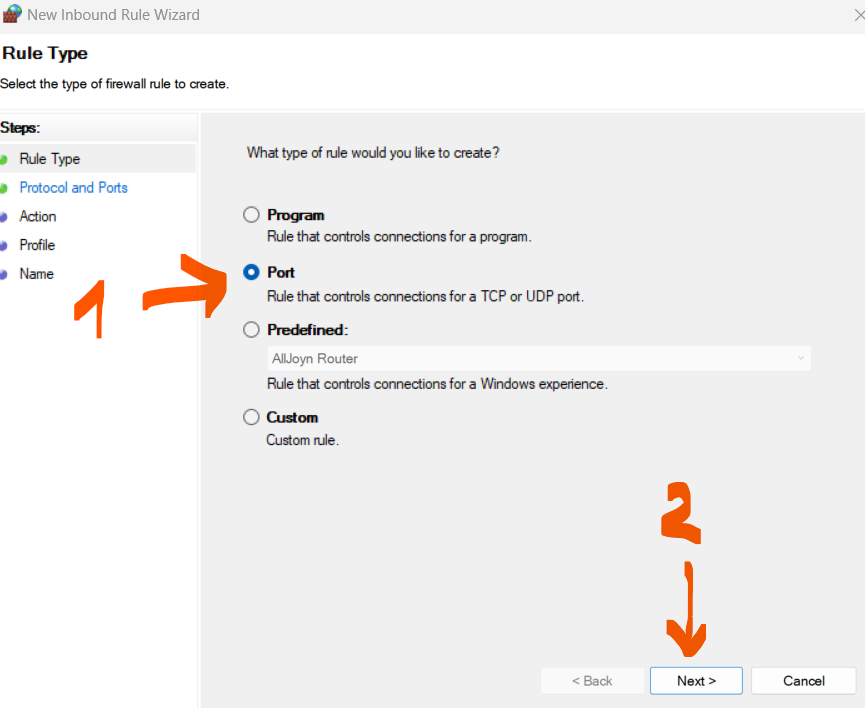
Firewall Configuration to open ports 31400 to 31409 (Windows Users)
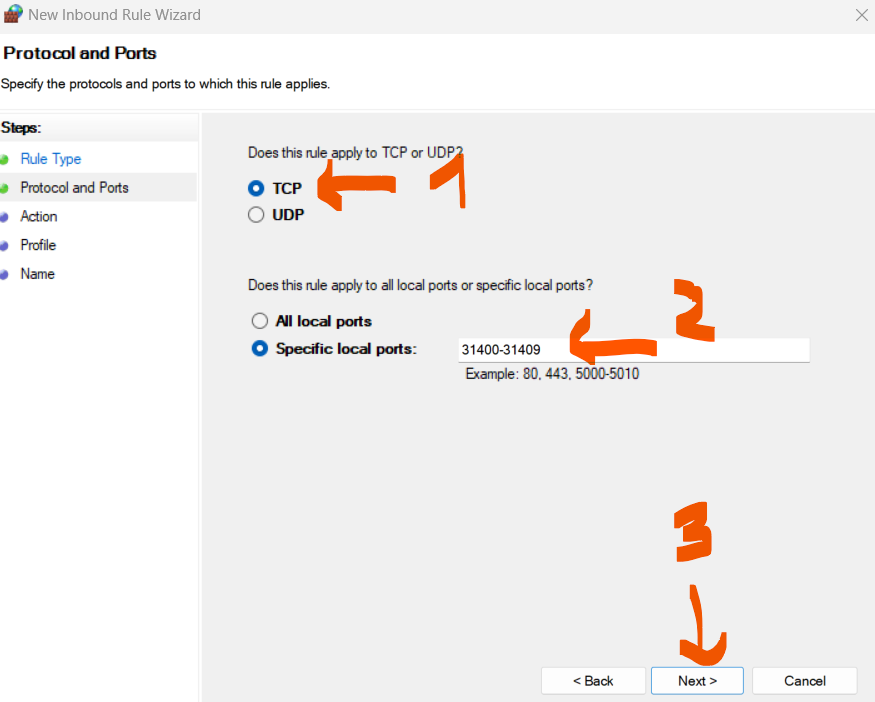
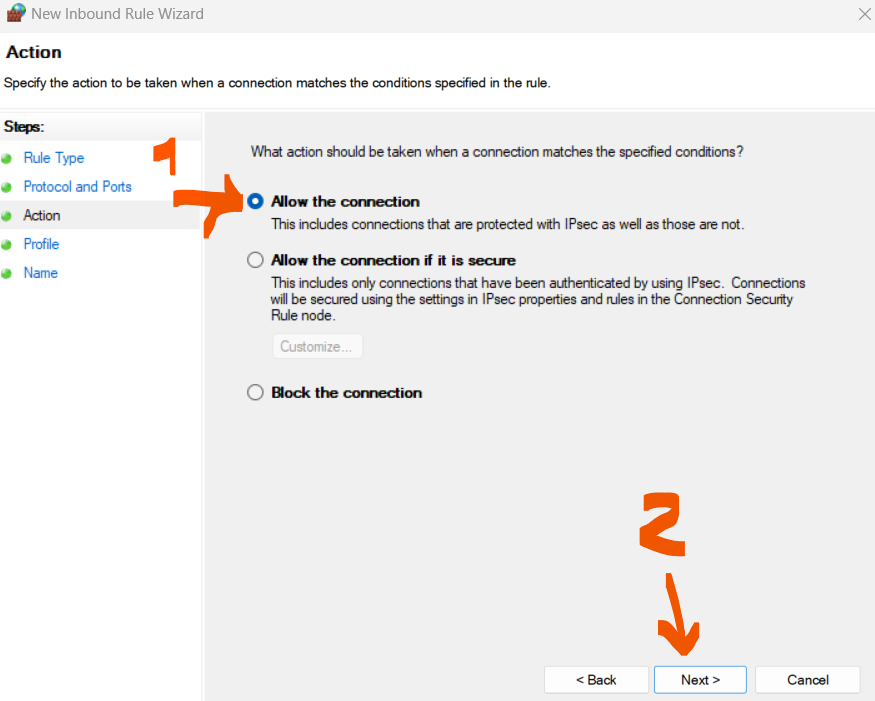
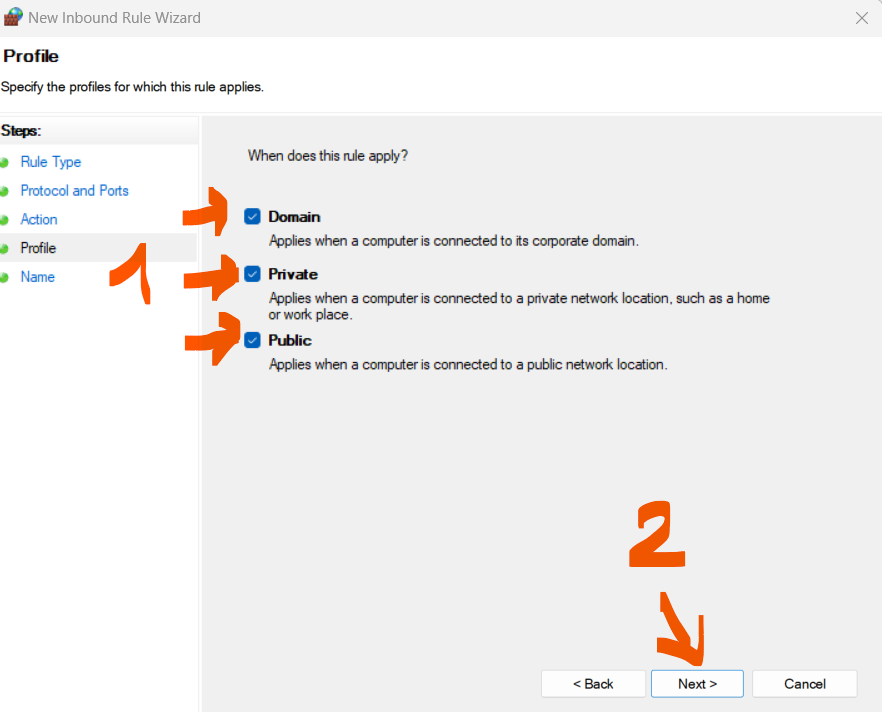
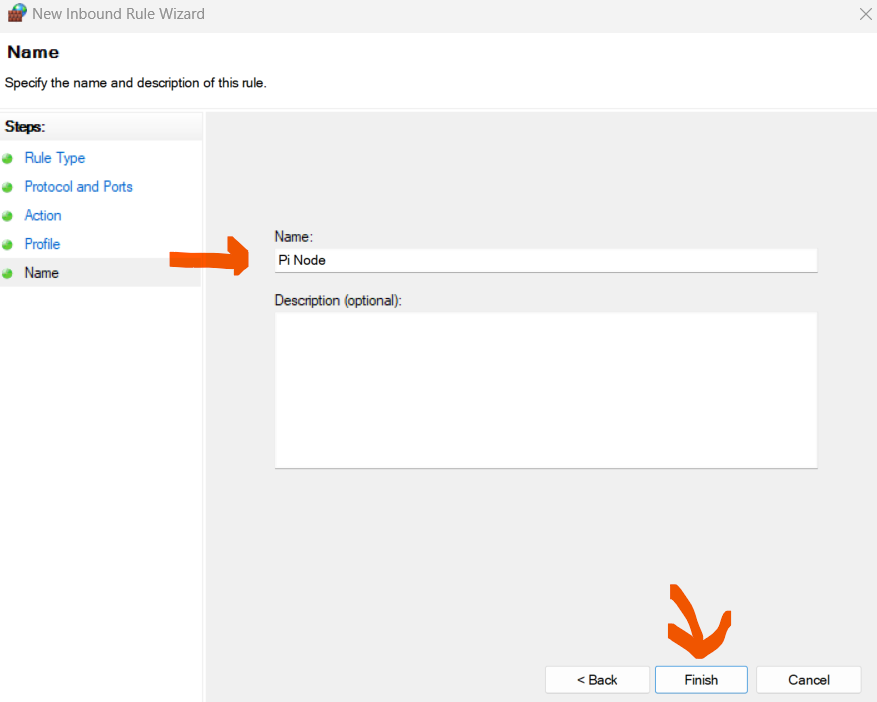
Step 4/4 :
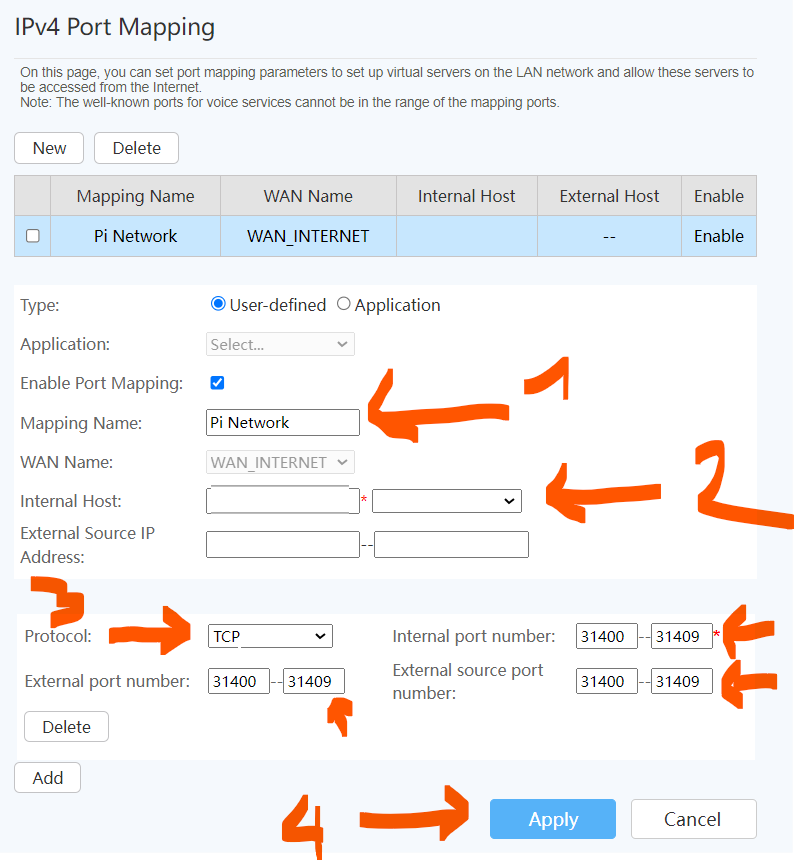
Router Configuration to open ports 31400-31409 – That depends on your network configuration, and it is not compulsory for many Noders
Conclusion
After following carefully these instructions, your Node should be up and running properly. Sometimes it takes some hours to SYNC. So be patient! After, waiting if it’s still NOT working, then email us or write a comment, and we will be more than happy to help fix your errors.





https://shorturl.fm/in1wm
https://shorturl.fm/oONQ6
https://shorturl.fm/EETmX
https://shorturl.fm/vBbkx
https://shorturl.fm/aoSat
https://shorturl.fm/8lTiL
https://shorturl.fm/2u7UD
https://shorturl.fm/eW0LO
https://shorturl.fm/fSvu4
https://shorturl.fm/qeWyL
https://shorturl.fm/J1j43
https://shorturl.fm/dpUCK
https://shorturl.fm/9hOSZ
https://shorturl.fm/ZnkLv
https://shorturl.fm/XTd8e
https://shorturl.fm/GRbxq
https://shorturl.fm/rbXgp
https://shorturl.fm/3wXh3
https://shorturl.fm/S6QFK
https://shorturl.fm/yP3pO
https://shorturl.fm/6LrRW
https://shorturl.fm/8P8xV
https://shorturl.fm/DLdyx
https://shorturl.fm/b4XbM
https://shorturl.fm/CBL3H
https://shorturl.fm/aPfiG
https://shorturl.fm/eBEOj
https://shorturl.fm/VtrBg
https://shorturl.fm/Bfjlw
https://shorturl.fm/89w7P
https://shorturl.fm/N9UM4
https://shorturl.fm/JkkWy
https://shorturl.fm/5i8Mn
https://shorturl.fm/cTGqM
https://shorturl.fm/VmuGh
https://shorturl.fm/ARwXG
https://shorturl.fm/bmRRB
https://shorturl.fm/imHOl
https://shorturl.fm/ldOrz
https://shorturl.fm/JEYnp
https://shorturl.fm/7PAi0
https://shorturl.fm/Uj9Tl
https://shorturl.fm/FVxZN
https://shorturl.fm/Dea8R
https://shorturl.fm/6pMc8
https://shorturl.fm/iOXw3
https://shorturl.fm/A7b6r
https://shorturl.fm/uDHWD
https://shorturl.fm/E7nhK
https://shorturl.fm/ATulQ